
How to Report a Trail Issue
Reporting Process
This pamphlet was prepared for use with the Trailforks App. If you wish to use the Trailforks website, click Trail Report to go directly to the Trailforks web form.
Before using this process, you must download the app from your app store. Create a “free account”
and select the area (Westminster MD or Hashawha Environmental Center).

Step 1 - Open the App
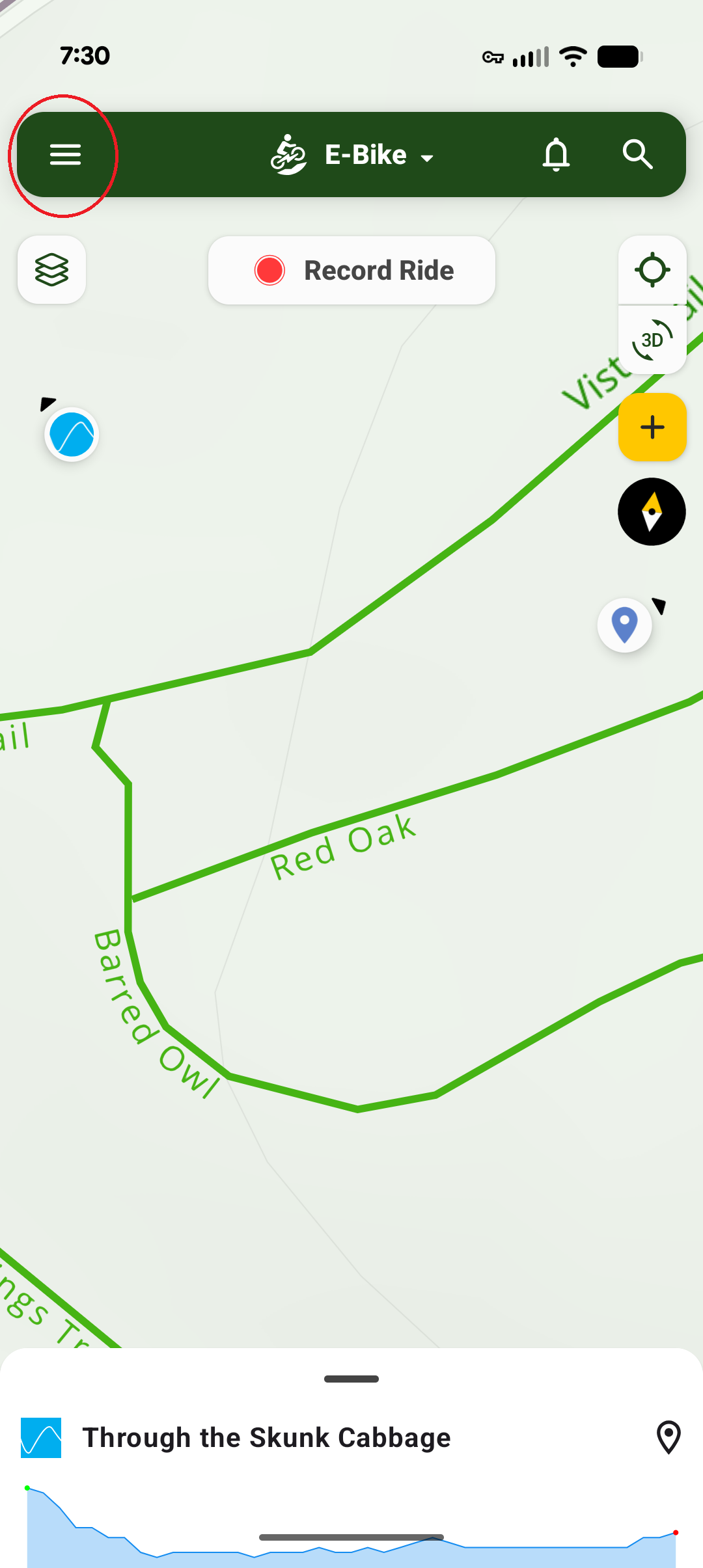
If necessary, Log in. Then press the “pancake” menu - circled in red in the upper left corner of the top bar.
Step 2 - Select Trail Reports
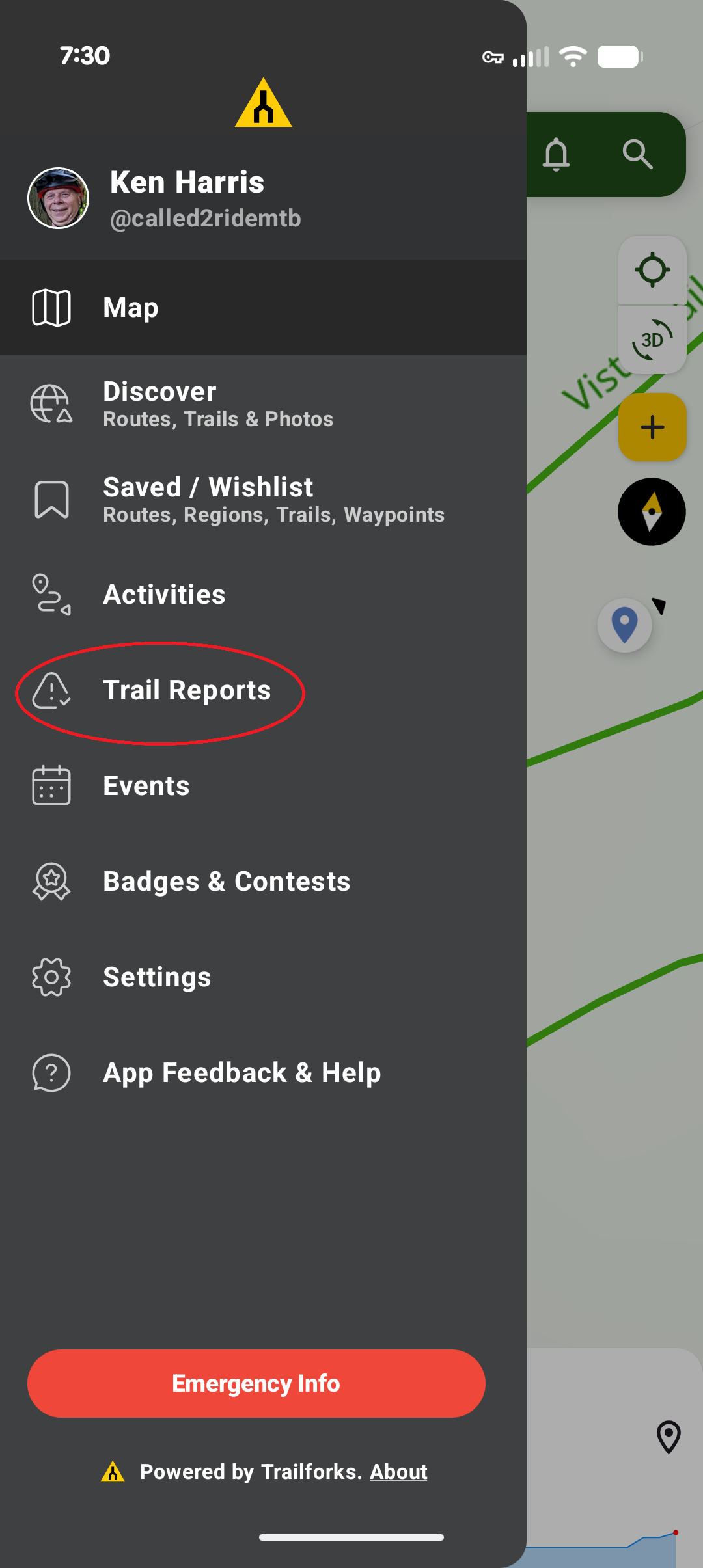
After pressing the pancake, a drop-down menu appears.
Select the “Trail Reports” option to open the reporting tool.
Step 3 - Press the Plus (+) Sign
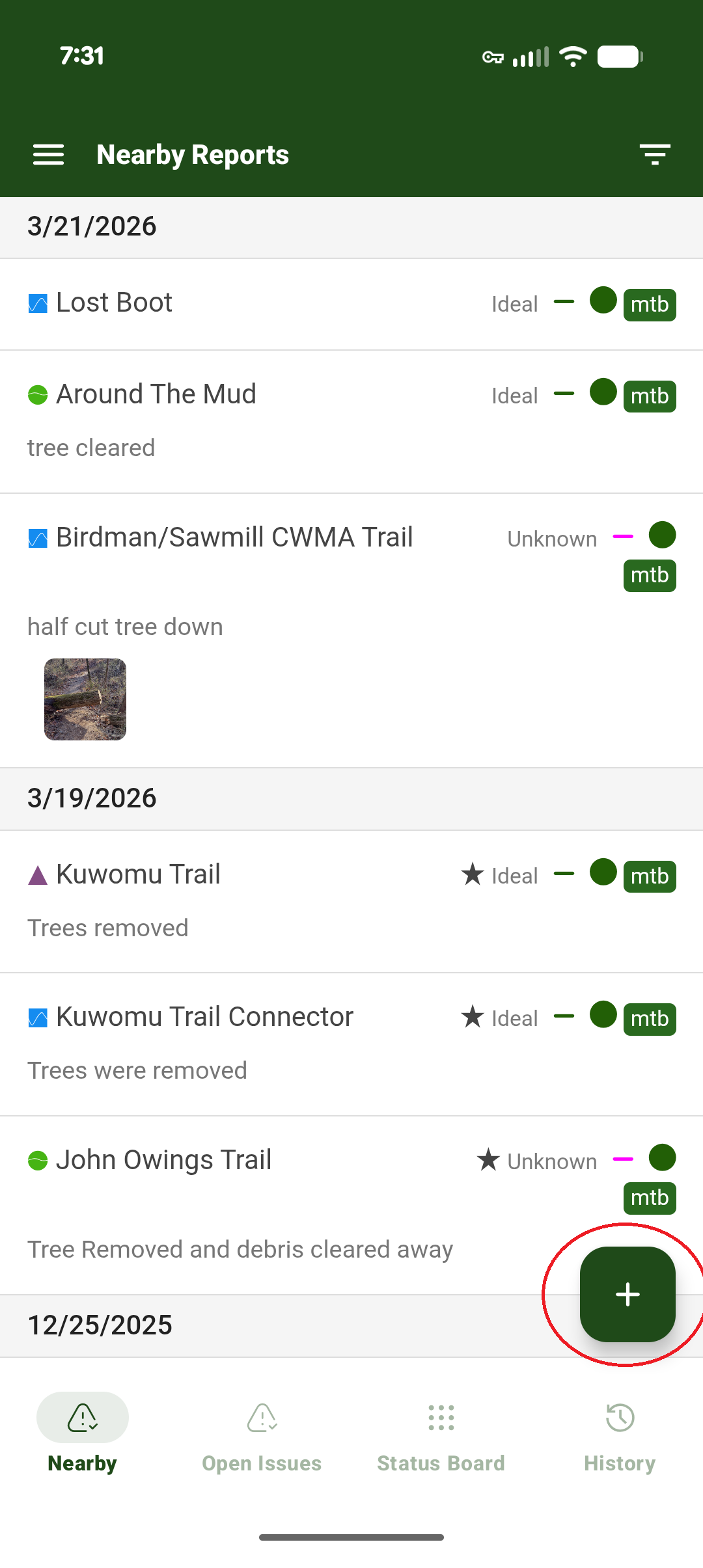
Pressing the plus sign in the lower right corner opens the trail report form.
Step 4 - Fill Out the Form
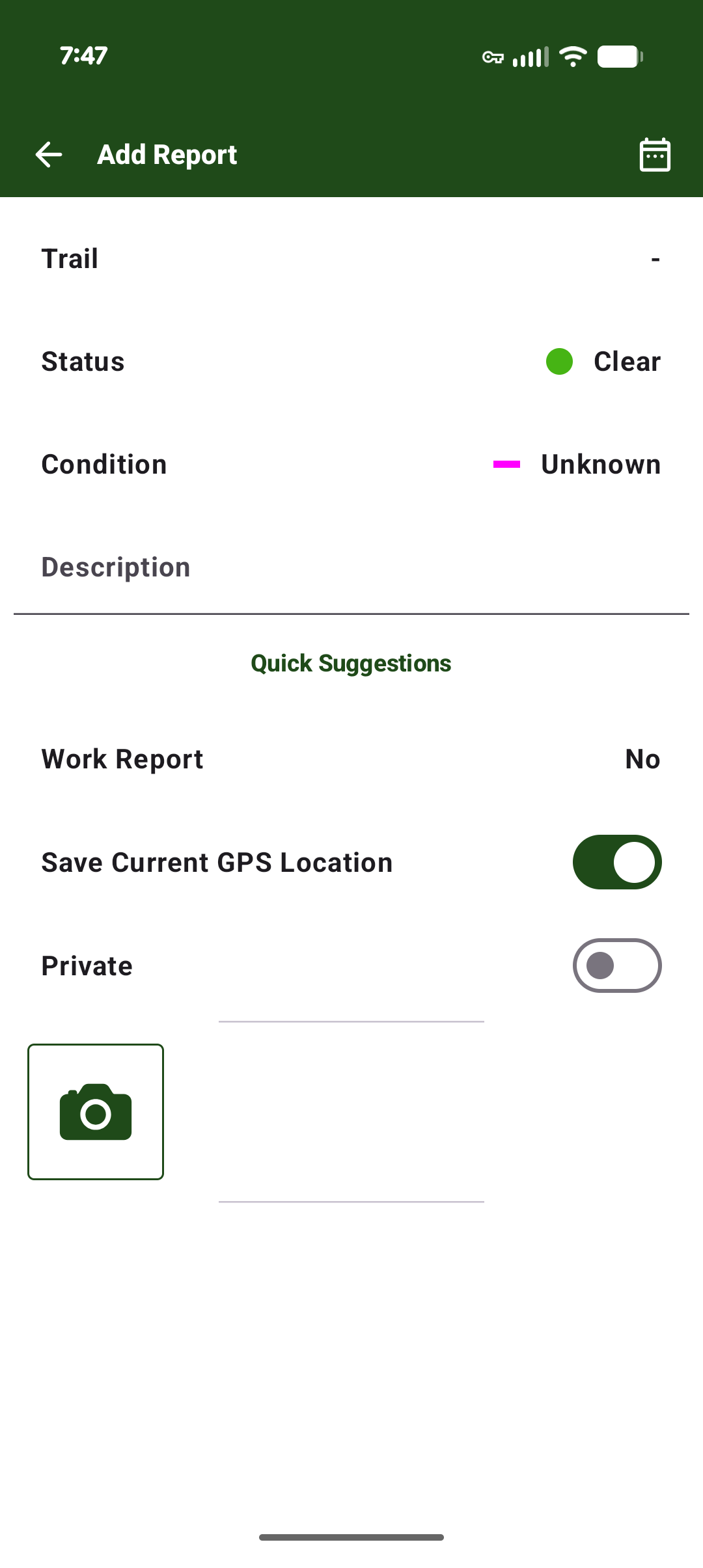
Click on the trail drop-down and select a trail
Change the status to reflect the issue
Green – Clear
Yellow – Minor Issue
Orange – Significant Issue
Red – Closed
Change the Condition
Select the current condition of the trail.
Description – Please describe the issue clearly
Work Report – No
Save Current GPS Location – YES (on)
Private – NO (off)
PLEASE Take a picture.
This helps us figure out what we need to correct the problem.
NOTE: The submit button will not appear until a trail is selected.
Step 5 - Submit the Form
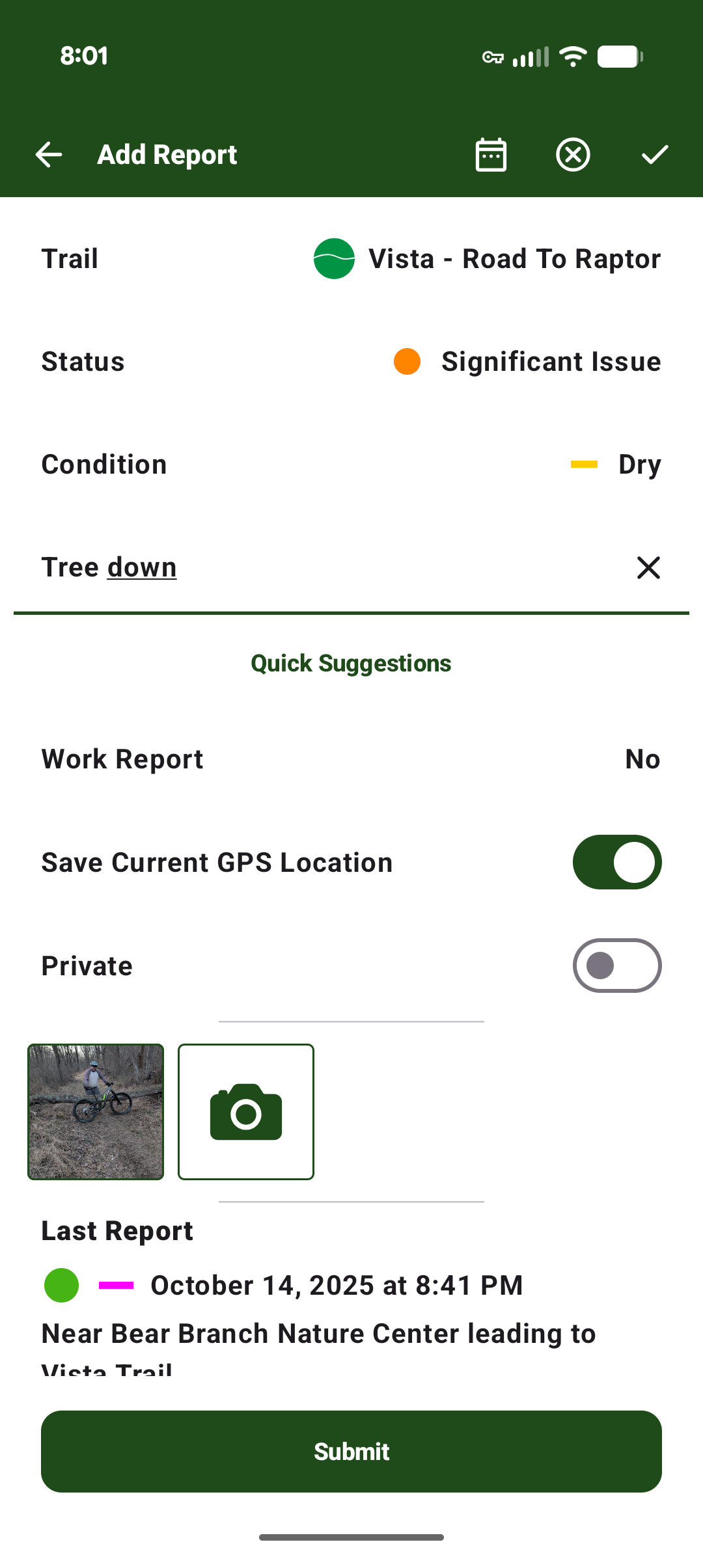
Your finished report should look like the image above
Once everything has been entered, press the Submit button at the bottom of the screen.
This process will collect all the necessary information and notify the trail administrators by email. The issue will then be reported to the park staff and those who help maintain the trails.